
Office Wi-Fi that covers the whole floor: access points, not extenders
Weak Wi-Fi in the far office is rarely fixed by a stronger router or another extender. Here is how cabled access points, roaming and a separate guest network cover a whole office floor.
Why one router and a few extenders stop working
If the Wi-Fi in your office is strong at reception and weak in the far meeting room, the fix is rarely a stronger router or another extender. It is a few access points fixed to the ceiling where people work, each cabled back to the network, all broadcasting one network name and managed from one place. That is how business Wi-Fi covers a whole floor.
Most offices start the other way round: the provider's router covers the room it sits in, and when the far offices complain, someone buys an extender. That can work in a flat. An office has more walls and far more devices.
Walls are the first limit. MikroTik, one of the brands we install, notes in its guide to configuring a repeater that concrete, pipes, metal and water all affect Wi-Fi indoors, and its notes on ceiling access points add mirrors, tinted glass and metal file cabinets. Block walls and tinted windows both work against a single router.
The extender is the second limit. It has no cable back to the network: it listens to the router over the air and repeats what it hears, so everything it passes on uses the air twice. MikroTik's repeater guide says the throughput you get from an extender is reduced at least by half, and further with distance from the router. Since it must sit where it can still hear the router, it usually ends up where the signal is already fading. The same guide adds that in the repeater setup it describes, the standards which help devices move between access points cannot be used, so some devices cling to the weaker signal.
What an access point is, and why each one gets a cable
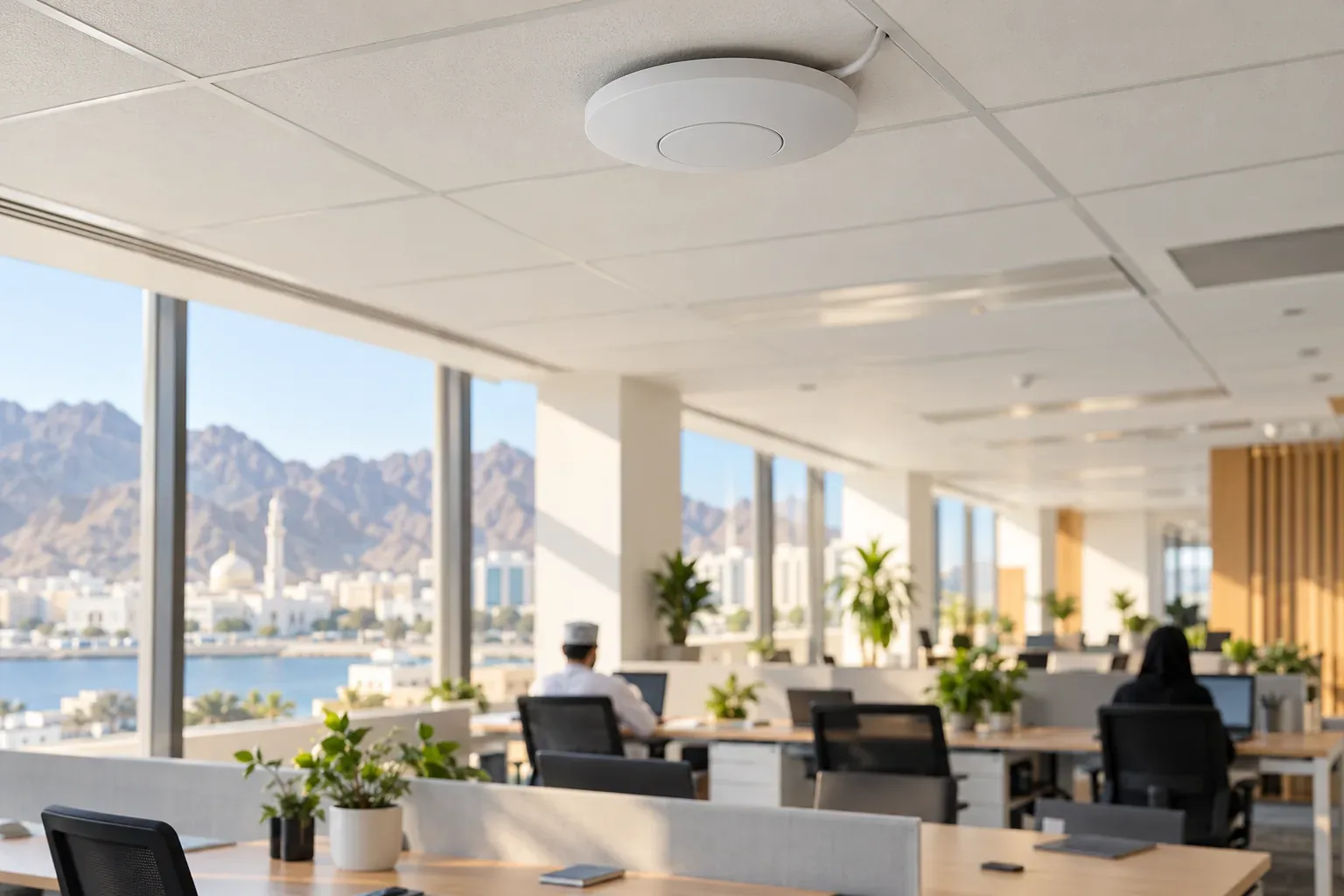
An access point is the part of a network that does Wi-Fi and nothing else. A home router combines one in a single box with the router and a small switch. In an office those jobs are split: the router and switches stay in the comms cabinet, and the access points go out onto the floor, each connected to a switch by network cable.
That cable is the whole difference. An access point on a cable gets the full network at its end instead of first catching a signal over the air. MikroTik's guide is direct: for the most throughput, each access point should be connected to the main network by Ethernet cable.
The same cable usually powers it. Power over Ethernet (PoE), which the IEEE standardised as 802.3af and later extended, sends power from the switch down the data cable, so a ceiling access point needs no socket beside it. We plan PoE for the access points we fit, so the switch needs enough PoE ports and total power for all of them, and a small UPS in the cabinet keeps the Wi-Fi up through short power cuts.
The cabling itself is ordinary structured cabling: Cat6 or Cat6A for most offices, each run labelled at both ends and tested. In a new space, run it while the ceilings are open, as part of setting up the IT for a new office or branch.
Planning coverage around walls, glass and desks
Good coverage starts from the floor plan. We mark where people sit, where meetings happen, which walls are block and which are glass, and where metal shelving stands. That walk-through is the free on-site survey we do in Oman before quoting business network setup, structured cabling and Wi-Fi. Then the access points go where the people are:
- On the ceiling, near the middle of the area each one serves, not in a cupboard or in the corner where the cable happened to end. MikroTik's ceiling notes make the same point: mounted high, the signal rises above the obstacles.
- Close enough that their signals overlap at the edges, each on a different channel from its neighbours so they do not talk over one another.
- With extra capacity where devices crowd together. A training room full of laptops on a video call is a capacity problem, not a coverage one. The Wi-Fi Alliance describes Wi-Fi 6 as built for dense environments, with access points able to handle more devices at once.
- On both bands. MikroTik's repeater guide sums up the trade: 5 GHz carries much more data over a shorter range, 2.4 GHz reaches further with less. The plan has to work on 5 GHz, where the real work happens.
Do not simply turn every access point up to full power: a louder access point does not make a phone louder, and a laptop that hears a distant one but cannot be heard by it clings to a link that barely works. After installation, walk the floor with a laptop, measure the signal at the desks and in the far rooms, and adjust where a reading disappoints.
Roaming across the floor, managed from one place
When the access points share one network name and security settings, a device can roam from one to the next as its user walks around, and it is the device, not the network, that decides when. The Wi-Fi Alliance's description of Wi-Fi Agile Multiband puts it that way, as the moment "a client device decides to roam".
The network can help it decide well, through three IEEE 802.11 amendments that MikroTik's WiFi documentation explains:
- 802.11k gives the device a list of neighbouring access points, so it knows where it can go next.
- 802.11v lets the network suggest a better access point, which the device may accept or ignore.
- 802.11r, fast transition, shortens the handover, so a call is less likely to drop on the walk to a meeting room.
These depend on the access points being managed together. On MikroTik equipment, 802.11r roaming between two access points needs both to be managed by the same system, which is the job of its central manager, CAPsMAN, described in the documentation as allowing "the centralization of wireless network management". A password or network name is then changed once for every access point, you can see every access point's status from one place, and a new access point takes its settings from the controller when it joins.
Staff, guests and devices on separate networks
The same access points can broadcast several network names, each leading to its own separate network, a VLAN: MikroTik's documentation shows a main network on one VLAN and a guest network on another. A sensible office arrangement:
- A staff network secured with WPA3 wherever devices support it. The Wi-Fi Alliance says WPA3 is mandatory for Wi-Fi CERTIFIED devices and gives WPA3-Personal users stronger protection against password guessing.
- A guest network that reaches the internet and nothing else, with client isolation switched on, so one visitor's phone cannot reach another's. The Wi-Fi Alliance's Wi-Fi Enhanced Open can encrypt an open guest network without a shared password.
- Printers, screens and other fixed devices on a network of their own. Payment terminals and phones that cannot drop belong on a cable.
Change the staff password when someone leaves. The security side of this separation is covered in network and endpoint security.
Mesh Wi-Fi or access points?
A mesh system is also several access points working together as one network: that is how the Wi-Fi Alliance describes its Wi-Fi EasyMesh programme for home and small office networks. So the real question is how each access point links back to the network.
Units that link over the air depend on the signal between them, which the same walls and glass weaken, and cabling them removes that weakness. EasyMesh puts easy, self-adapting setup first, but an office also needs separate staff and guest networks, so check that a system supports them. A wireless link still suits a spot no cable can reach, such as a store room across a yard, and MikroTik's guide accepts that cabling is not always possible. For a working office, the dependable pattern is cabled access points, with a wireless link only where a cable truly cannot go.
What to ask before you choose an installer
These questions separate a Wi-Fi design from a box of access points:
- Will you survey the office on site and show me where each access point goes, and why?
- Is every access point cabled to a PoE switch with enough power for all of them, and a UPS in the cabinet?
- Will staff, guests and devices be on separate networks, with the guest network isolated?
- Will 802.11k, v and r be set up, and will you test a call while walking the floor?
- Is everything on one controller, and will we hold the admin login?
If your company has more than one location, the same pattern repeats at each site, which is part of connecting multiple branches so they work as one business.
Frequently asked questions
What does an access point mean?
An access point is the device that turns a wired network into Wi-Fi: it connects to a network switch by cable and lets phones and laptops join. The internet connection stays with the router in the comms cabinet, so an access point does not need an internet line of its own.
How do I install an access point in an office?
It is usually fixed to the ceiling or high on a wall, with one network cable from a PoE switch carrying both data and power. It is then joined to the central controller so it takes the same network names and settings as the others, and the position is checked by measuring the signal where people sit. Plugging it into a spare router port and leaving it on a shelf is a stopgap, not a plan.
What is the best access point for an office?
No single model suits every office. The right one is a business access point powered over the network cable, with WPA3 and roaming support, managed with the others from one place, and how many you need and where they go comes from a survey of your floor. One more powerful unit rarely fixes a floor that needs several ordinary ones spread out.
My office Wi-Fi is slow. What should I do?
First find out whether it is slow everywhere or only in some places. If a laptop plugged in by cable is slow too, the problem is the internet line or the router, not the Wi-Fi; if it is slow only far from the router, it is coverage, and the fix is another cabled access point rather than an extender. Restarting the router can hide either problem for a while but fixes neither.
Mesh Wi-Fi vs access points: which suits an office?
A mesh system is also a set of access points, and the difference is mostly how they link to each other. Units that link over the air depend on the signal between them while cabled access points do not, and business systems usually add separate staff and guest networks and central management. A wireless mesh link can make sense for a spot where a cable truly cannot go.
Get a quote for your setup

Amirh. Safavi
Founder
Amirh. Safavi is the founder of BudTech LLC, an IT and software company in Muscat founded in 2026, and writes its guides to business IT in Oman.
More from Amirh. Safavi